Billing & Settings
Review Audit and Compliance Records
Find audit events, export records, and review access or configuration changes.
4 min readUpdated 14 May 2026
Overview
Use this guide to find audit events, export records, and review access or configuration changes.
Goal
Use audit records to understand what changed, who changed it, and when.
Before You Begin
- Sign in to Liceo.
- Confirm you have permission to view audit records.
- Know the date range, user, app, contract, or event type you need to review.
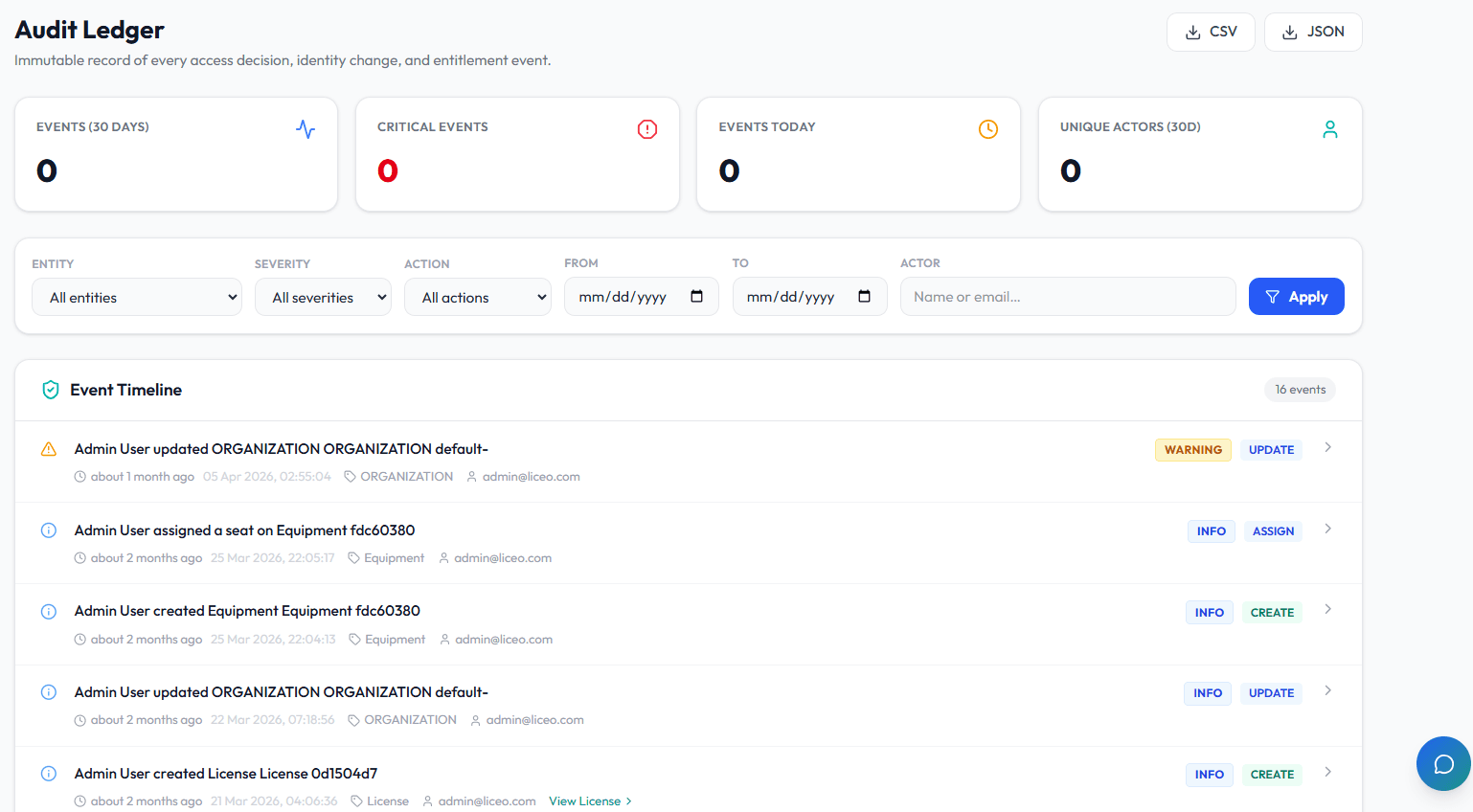
Step 1 - Open the audit ledger
- 1Open Intelligence in the left sidebar.
- 2Select Audit Ledger.
- 3Wait for audit events to load.
Step 2 - Filter audit events
- 1Select the date range.
- 2Filter by user if you are investigating a specific actor.
- 3Filter by entity if you are reviewing an app, contract, vendor, equipment record, or integration.
- 4Filter by action type if available.
- 5Apply the filters.
Step 3 - Review an event
- 1Open the audit event.
- 2Review the actor.
- 3Review the timestamp.
- 4Review the affected record.
- 5Compare the previous value and new value if shown.
- 6Note any follow-up needed.
Step 4 - Export audit records
- 1Apply the required filters.
- 2Confirm the date range.
- 3Select Export if available.
- 4Save the file in the approved internal location.
- 5Share only with authorized reviewers.
Step 5 - Review access roles
- 1Open the user or team management area.
- 2Review each user's role.
- 3Confirm admins still need admin access.
- 4Downgrade or remove unnecessary access according to your internal process.
- 5Record the access review if required.
Troubleshooting
Audit event is missing
Check the date range and filters. The event may also be outside the retention window.
Export is too broad
Filter by date, actor, entity, or action type before exporting.
User has too much access
Update the user role or remove access according to your internal approval process.
Was this article helpful? Send us feedback
← Back to Help Center