Integrations
Connect a Directory
Connect Microsoft Entra ID, Okta, or Google Workspace so Liceo can discover users, apps, assignments, and license data.
5 min readUpdated 14 May 2026
Overview
Use this guide to connect Microsoft Entra ID, Okta, or Google Workspace so Liceo can discover users, apps, assignments, and license data.
Goal
Connect a directory source and confirm that Liceo has imported app and user data.
Before You Begin
- Sign in to Liceo as an admin.
- Have admin access to the directory provider.
- Confirm you are allowed to approve read access for users, groups, apps, and assignments.
Step 1 - Open Integrations
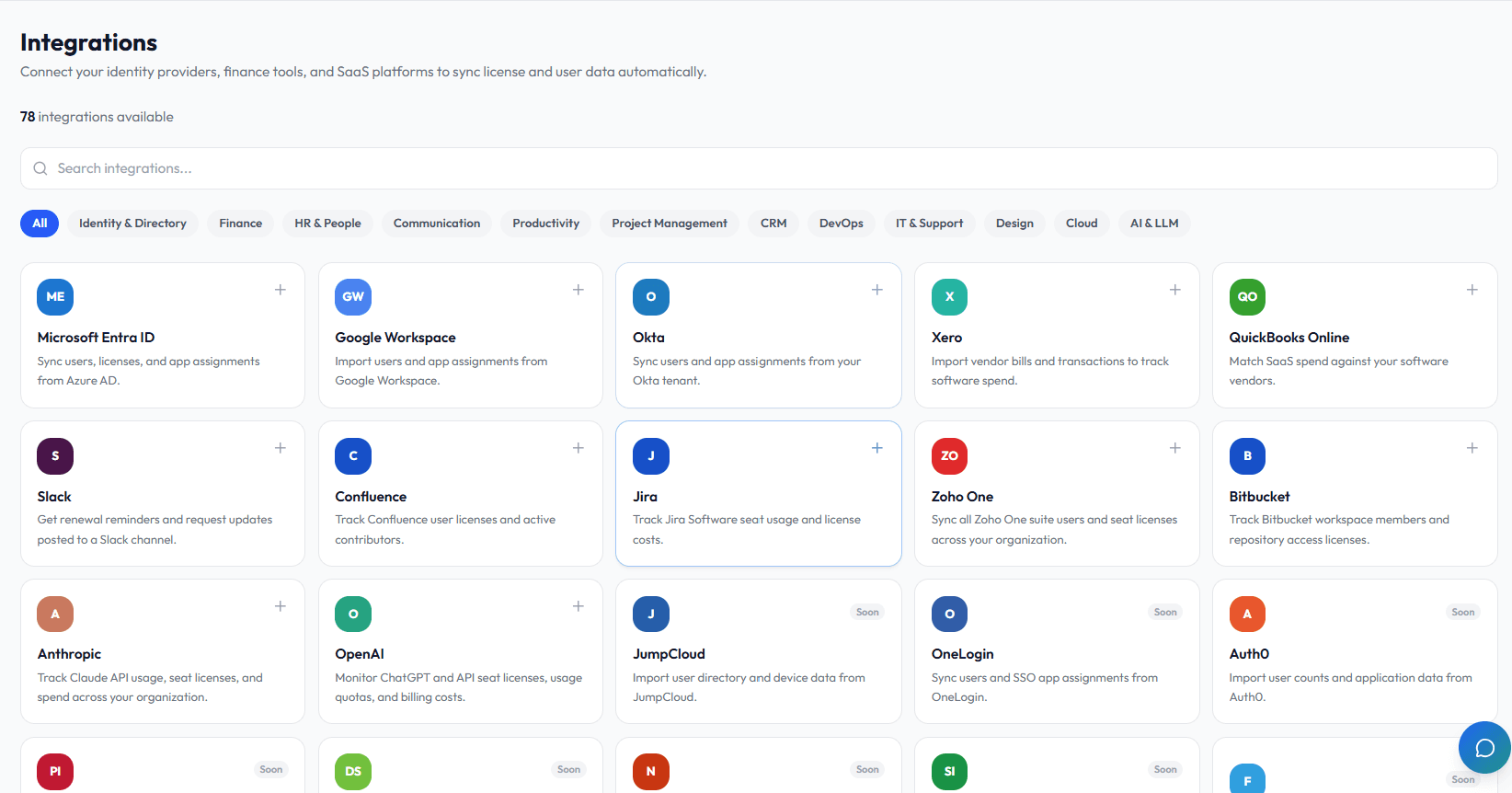
- 1In Liceo, open System.
- 2Select Integrations.
- 3Review the available directory providers.
Step 2 - Choose the directory provider
- 1Select Microsoft Entra ID, Okta, or Google Workspace.
- 2Review the connection requirements.
- 3Confirm you are using the correct admin account for that provider.
Step 4 - Start the first sync
- 1Select Sync or start the first import when prompted.
- 2Wait for the sync to complete.
- 3Review any success, warning, or error messages.
Step 5 - Confirm imported data
- 1Open Overview.
- 2Confirm dashboard totals update.
- 3Open Licenses.
- 4Confirm discovered apps appear.
- 5Open User Directory if available.
- 6Confirm users or assignments appear.
Step 6 - Fill gaps after sync
- 1Open apps with missing vendor, cost, owner, or renewal data.
- 2Add purchased seat counts if they are missing.
- 3Add cost per seat or contract value.
- 4Add renewal date and notice period.
- 5Save each updated record.
Troubleshooting
Sync fails
Check that the connected admin account still has the required permissions, then reconnect the integration.
Apps are missing
The app may not be connected through SSO or the directory. Add it manually in Licenses.
Users are missing
Check provider permissions and confirm the sync completed after the user was created.
Was this article helpful? Send us feedback
← Back to Help Center