Getting Started
Using the Dashboard
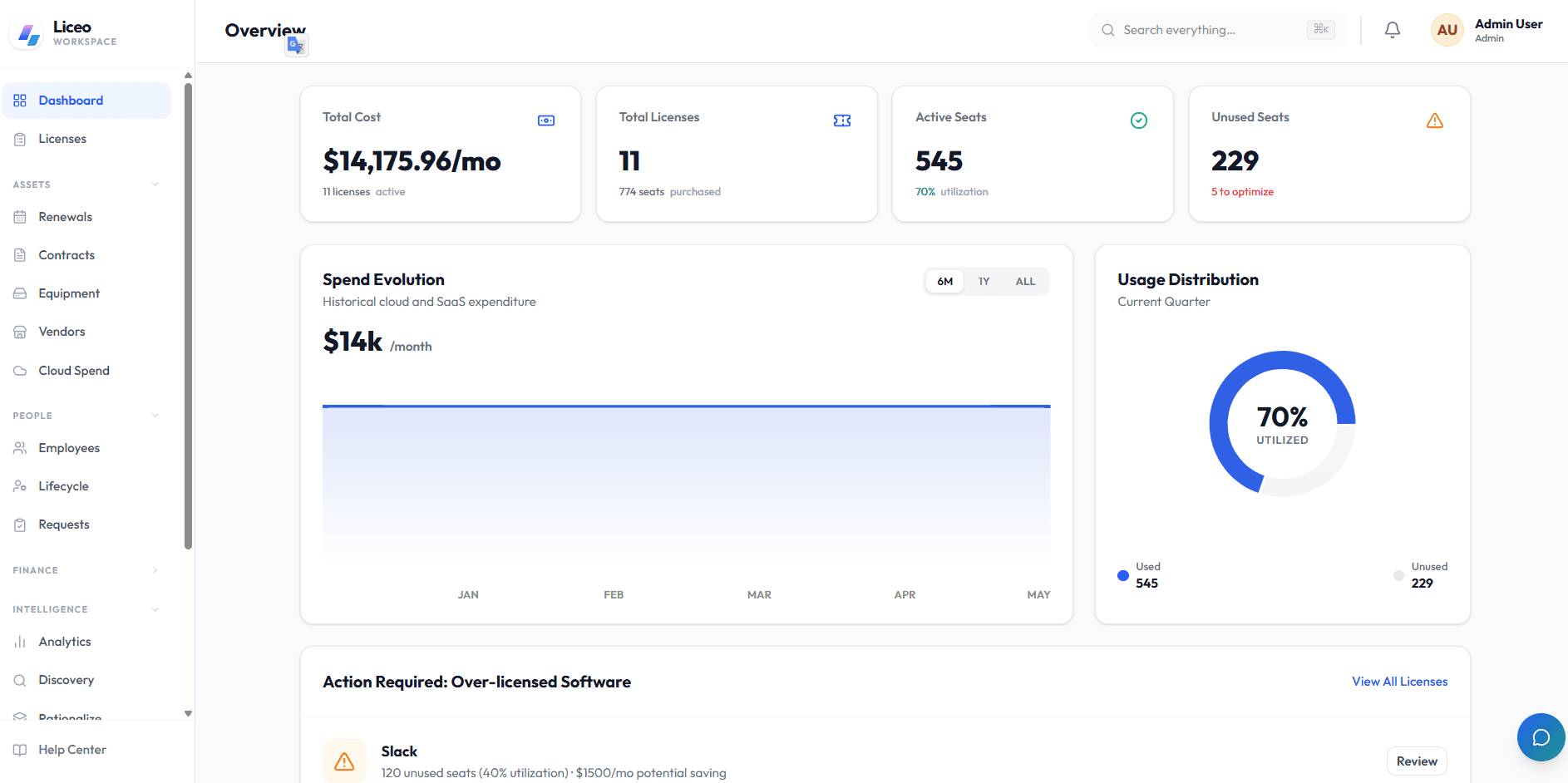
Review SaaS spend, usage, alerts, and action items from the Overview dashboard.
5 min readUpdated 14 May 2026
Overview
Use this guide to review SaaS spend, usage, alerts, and action items from the Overview dashboard.
Goal
Use the dashboard to identify the license or renewal that needs attention first.
Before You Begin
- Sign in to Liceo.
- Make sure license and usage data has been synced or entered.
Step 1 - Open Overview
- 1Select Overview in the left sidebar.
- 2Confirm the page title says Overview.
- 3Wait for KPI cards and charts to load.
Step 2 - Review dashboard KPIs
- 1Check Total Cost for monthly SaaS spend.
- 2Check Total Licenses for tracked license count.
- 3Check Active Seats for seats currently in use.
- 4Check Unused Seats for potential waste.
- 5Note any KPI that needs follow-up.
Step 3 - Review spend trend
- 1Locate Spend Evolution.
- 2Select 6M, 1Y, or ALL.
- 3Compare spend across the selected period.
- 4Investigate increases by reviewing recent licenses or renewals.
Step 4 - Review usage distribution
- 1Locate Usage Distribution.
- 2Review the utilization percentage.
- 3Compare used seats with unused seats.
- 4Continue to Action Required if unused seats are high.
Step 5 - Open an action item
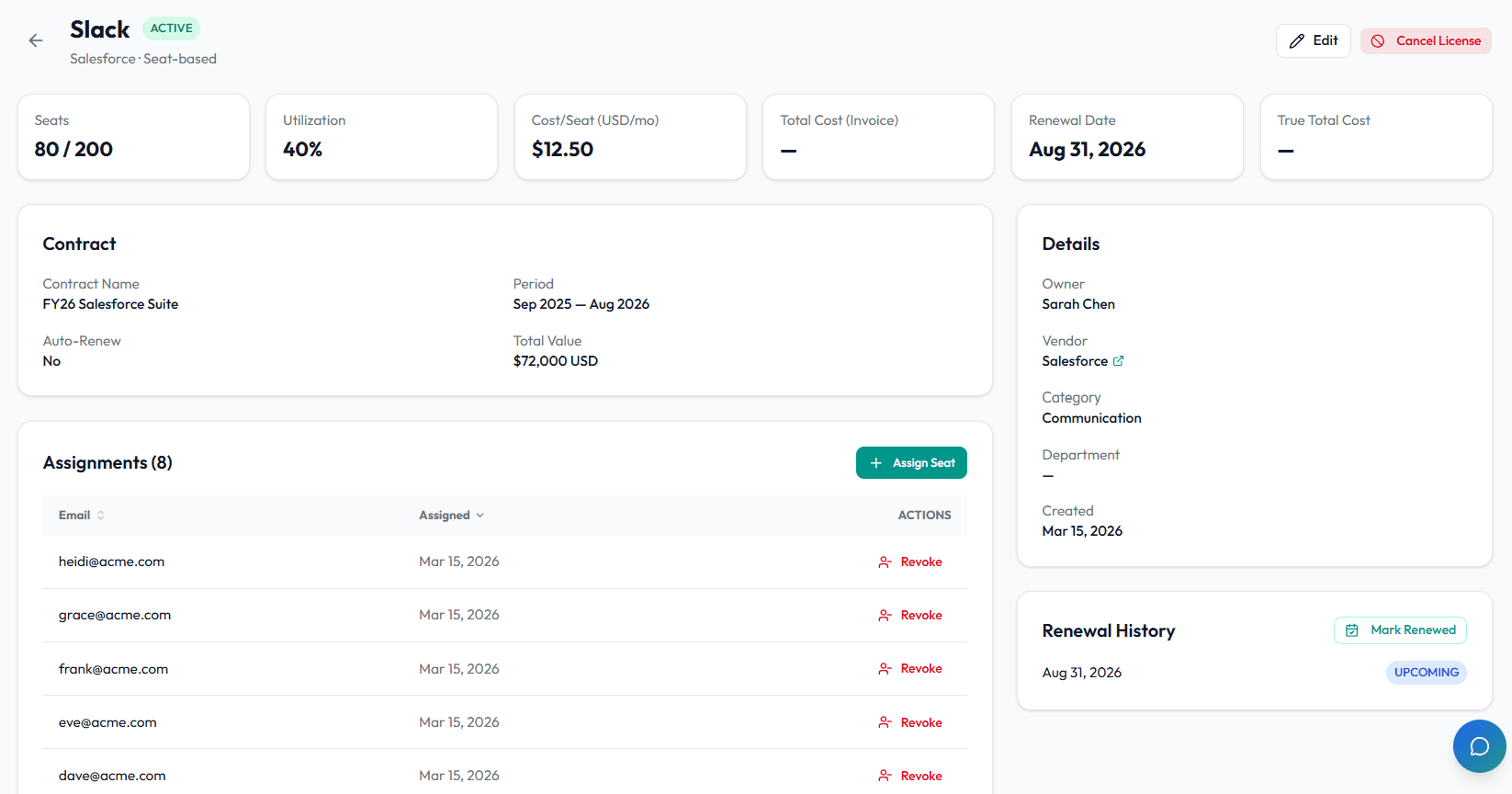
- 1Scroll to Action Required: Over-Licensed Software.
- 2Review unused seats and potential savings.
- 3Select Review on the highest-impact app.
- 4Check seats, utilization, cost, renewal date, assignments, and owner.
- 5Decide whether to reclaim seats, update data, or keep the allocation.
Step 6 - Use search and notifications
- 1Select Search everything... in the top bar.
- 2Enter an app or vendor name.
- 3Open the matching record.
- 4Select Notifications.
- 5Review renewal or license alerts.
- 6Open the related record and complete follow-up.
Step 7 - Ask the Liceo Assistant
- 1Select Open Liceo Assistant.
- 2Enter a specific question.
- 3Review the guidance.
- 4Select Reset conversation if you need to start over.
Troubleshooting
KPI numbers look wrong
Open Licenses and confirm cost, seat, status, and duplicate records.
Action Required is empty
Confirm usage and seat data exists. Apps without cost or assignment data may not produce action items.
Search does not find a record
Use a shorter search term or open the relevant section directly from the sidebar.
Was this article helpful? Send us feedback
← Back to Help Center