Integrations
Manage Integrations and API Access
Connect integrations, review sync health, and prepare API or webhook workflows for custom automation.
5 min readUpdated 14 May 2026
Overview
Use this guide to connect integrations, review sync health, and prepare API or webhook workflows.
Goal
Keep Liceo connected to the systems that provide users, apps, licenses, assignments, and usage data.
Before You Begin
- Sign in to Liceo as an admin.
- Confirm which system you want to connect.
- Gather credentials or approval access for the provider.
Step 1 - Open Integrations
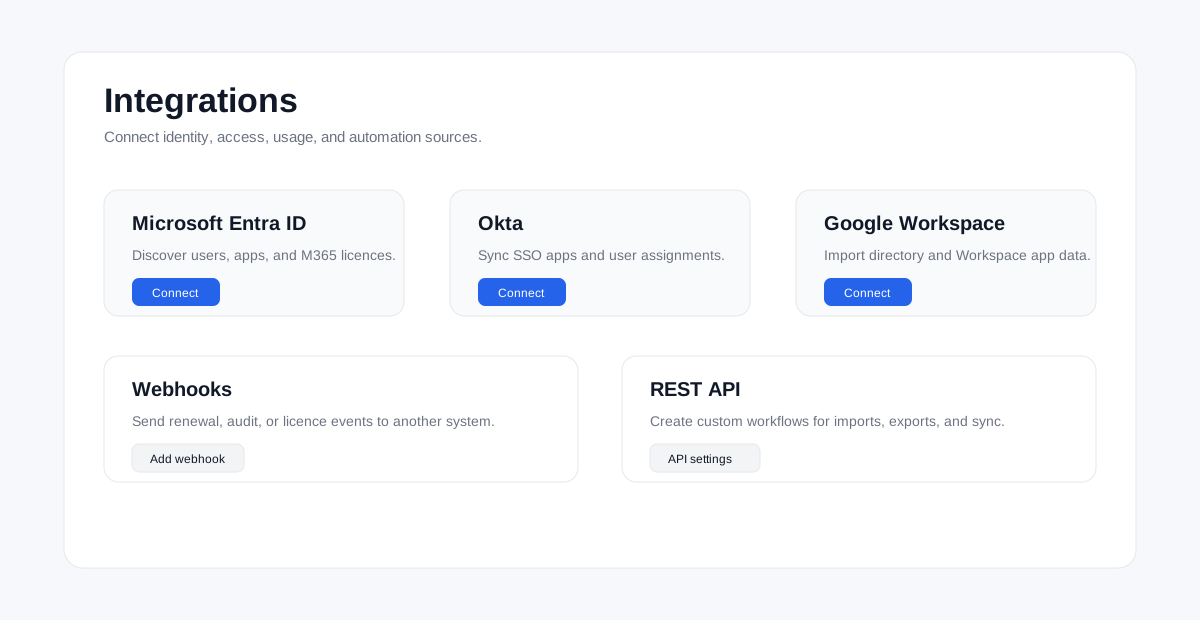
- 1Open System in the left sidebar.
- 2Select Integrations.
- 3Review available connectors.
Step 2 - Connect a directory integration
- 1Select Microsoft Entra ID, Okta, or Google Workspace.
- 2Review the requested permissions.
- 3Approve the connection using an admin account.
- 4Return to Liceo.
- 5Start the first sync.
- 6Confirm apps and users appear after sync.
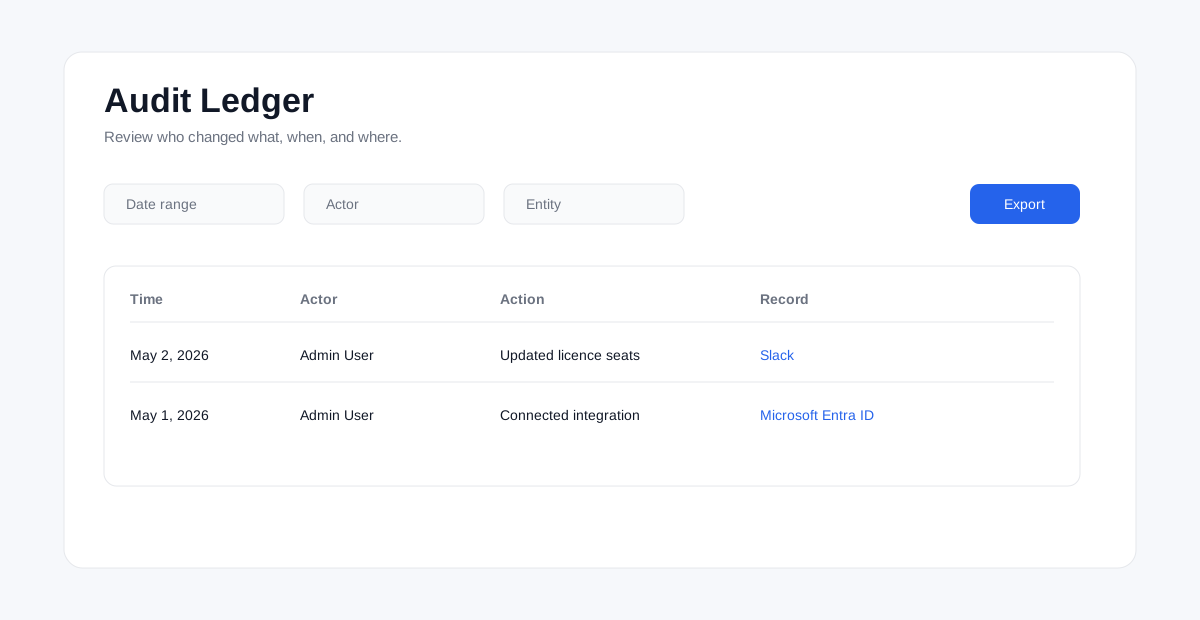
Step 3 - Review integration health
- 1Open System.
- 2Select Integrations or Monitoring.
- 3Check last successful sync time.
- 4Review failed syncs or permission errors.
- 5Reconnect expired credentials if needed.
Step 4 - Configure webhook workflows
- 1Open the webhook or API configuration area.
- 2Create a new webhook endpoint.
- 3Choose the event types to send.
- 4Enter the destination URL.
- 5Save the webhook.
- 6Send a test event if available.
- 7Confirm the receiving system records the event.
Step 5 - Use the API for custom automation
- 1Open API settings or developer settings.
- 2Create or copy an API credential if available.
- 3Store the credential securely.
- 4Build the integration against the approved API endpoints.
- 5Test with a non-production record first.
- 6Monitor errors after launch.
Troubleshooting
Sync fails
Check credentials, provider permissions, and integration health.
Data suddenly drops
Check for revoked permissions, expired credentials, or provider-side changes.
Webhook does not arrive
Check the destination URL, event type, authentication, and receiving-system logs.
Was this article helpful? Send us feedback
← Back to Help Center