Licenses
Manage Licenses
Add, review, update, import, export, and maintain license records in Liceo.
6 min readUpdated 14 May 2026
Overview
Use this guide to add, review, update, import, and maintain license records in Liceo.
Goal
Keep each software license accurate enough to support usage review, renewal planning, and cost optimization.
Before You Begin
- Sign in to Liceo.
- Gather app name, vendor, seat count, cost, owner, and renewal information.
- Confirm whether the license was synced, imported, or manually entered.
Step 1 - Open the license inventory
- 1Select Licenses in the left sidebar.
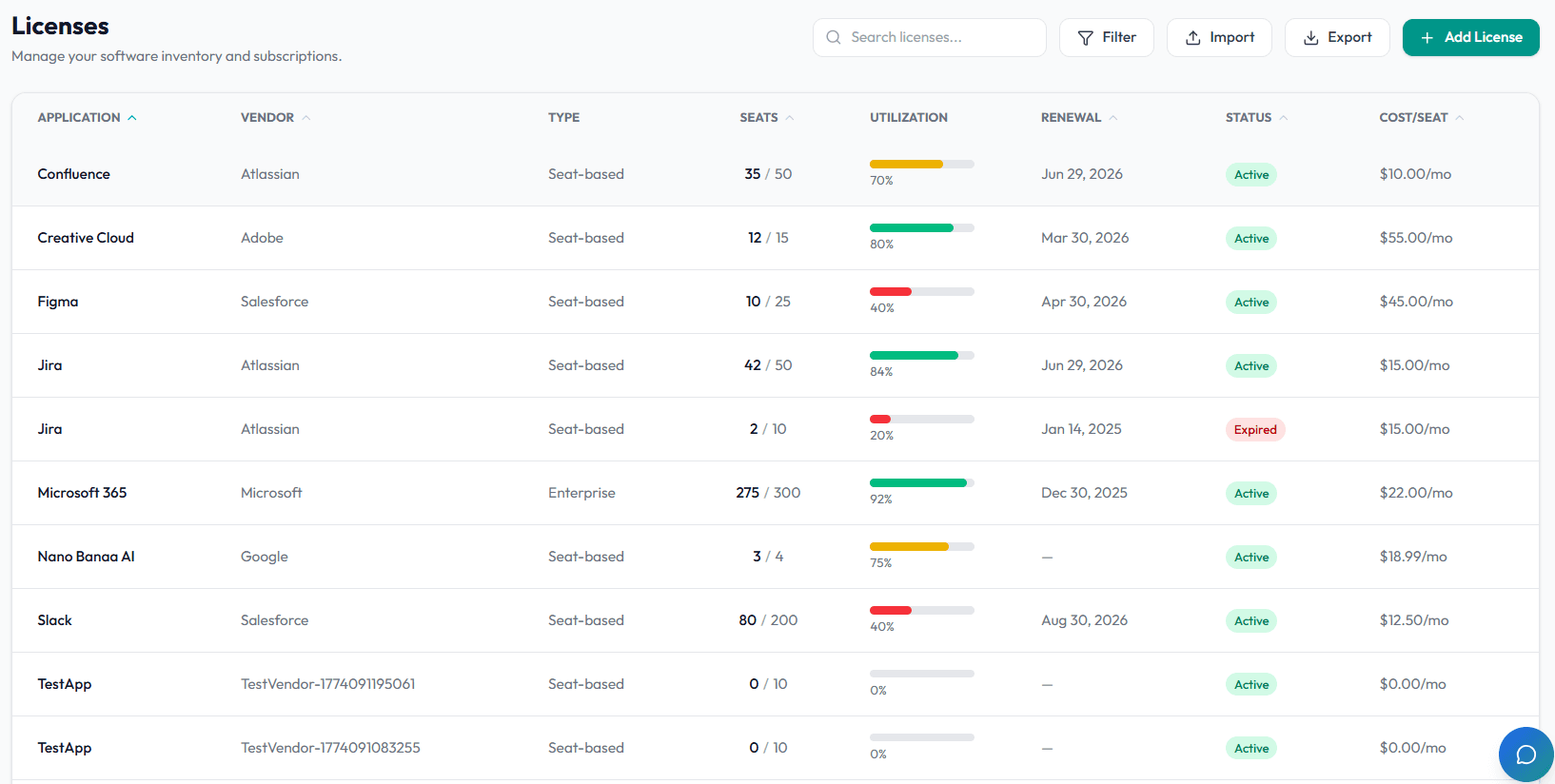
- 2Review the license table.
- 3Use search or filters to find an app.
- 4Select the app name to open the license detail page.
Step 2 - Add a license manually
- 1Open Licenses.
- 2Select Add License.
- 3Enter the application name.
- 4Select or enter the vendor.
- 5Choose the license type.
- 6Enter purchased seats.
- 7Enter cost per seat or invoice cost.
- 8Add owner, category, department, and renewal date.
- 9Save the license.
Step 3 - Edit license details
- 1Open the license detail page.
- 2Select Edit.
- 3Update seats, cost, status, owner, vendor, or renewal fields.
- 4Review the changes.
- 5Save the record.
- 6Return to the license detail page and confirm the update appears.
Step 4 - Import licenses in bulk
- 1Open Licenses.
- 2Select Import.
- 3Prepare the import file with consistent app and vendor names.
- 4Include seat count, cost, owner, status, and renewal fields where available.
- 5Upload the file.
- 6Review the import summary.
- 7Resolve duplicate or unmatched records.
Step 5 - Review license status
- 1Open the license record.
- 2Check whether the status is active, expired, canceled, idle, or review.
- 3Update the status if it no longer reflects the current subscription.
- 4Save the record.
Step 6 - Export license data
- 1Open Licenses.
- 2Apply any search or filter needed.
- 3Select Export.
- 4Save the exported file for finance, procurement, or leadership review.
Troubleshooting
A license appears twice
Search for the app in Licenses, compare both records, then merge, archive, or correct the duplicate according to your internal process.
Utilization is missing
Confirm seats and assignments are available from the integration or entered manually.
Cost is missing
Edit the license and add Cost/Seat, invoice cost, or contract value.
Was this article helpful? Send us feedback
← Back to Help Center