Licenses
Manage Renewals and Contracts
Add contracts, prepare renewal reviews, and avoid missed notice periods.
5 min readUpdated 14 May 2026
Overview
Use this guide to add contracts, prepare renewal reviews, and avoid missed notice periods.
Goal
Create accurate renewal records and complete a renewal review before the deadline.
Before You Begin
- Sign in to Liceo.
- Gather contract start date, renewal date, notice period, vendor, value, and owner.
- Gather current usage and seat data for linked apps.
Step 1 - Open renewals or contracts
- 1Open Assets in the left sidebar.
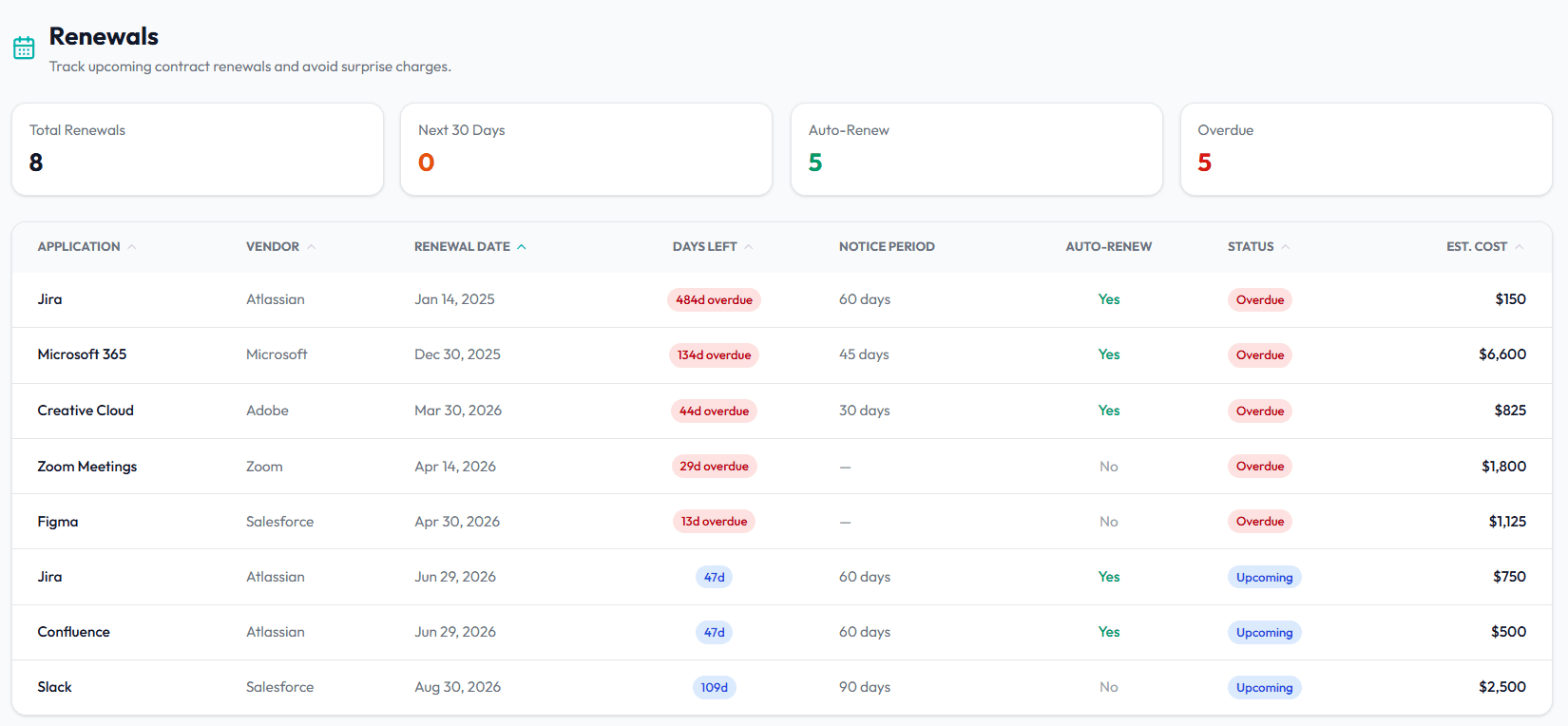
- 2Select Renewals to review upcoming deadlines.
- 3Select Contracts to manage contract records.
Step 2 - Add a contract
- 1Open Contracts.
- 2Select Add Contract.
- 3Select or enter the vendor.
- 4Link related app licenses.
- 5Enter start date.
- 6Enter renewal date.
- 7Enter notice period.
- 8Enter contract value and billing frequency.
- 9Upload or link the contract file.
- 10Assign an owner.
- 11Save the contract.
Step 3 - Prepare a renewal review
- 1Open Renewals.
- 2Select a renewal due in the next review window.
- 3Open the linked license or contract.
- 4Review purchased seats.
- 5Review active and unused seats.
- 6Review total spend and cost per active user.
- 7Review duplicate or similar tools.
- 8Ask the owner for a renewal recommendation.
Step 4 - Review auto-renewal risk
- 1Open the contract.
- 2Check whether Auto-Renew is enabled.
- 3Confirm the notice period.
- 4Set or verify reminders before the notice deadline.
- 5Assign a responsible owner.
Step 5 - Record the renewal decision
- 1Decide whether to renew, reduce, renegotiate, replace, or cancel.
- 2Update the contract or license notes.
- 3Upload supporting documents if needed.
- 4Select Mark Renewed if the renewal is complete.
- 5Update the next renewal date.
Troubleshooting
Renewal does not appear
Open the linked license or contract and add a renewal date.
Notice deadline is missing
Edit the contract and add the notice period.
Contract value is wrong
Edit the contract value and confirm billing frequency.
Was this article helpful? Send us feedback
← Back to Help Center