Billing & Settings
Manage Vendors
Add vendors, link apps and contracts, and prepare vendor spend reviews.
4 min readUpdated 14 May 2026
Overview
Use this guide to add vendors, link apps and contracts, and prepare vendor spend reviews.
Goal
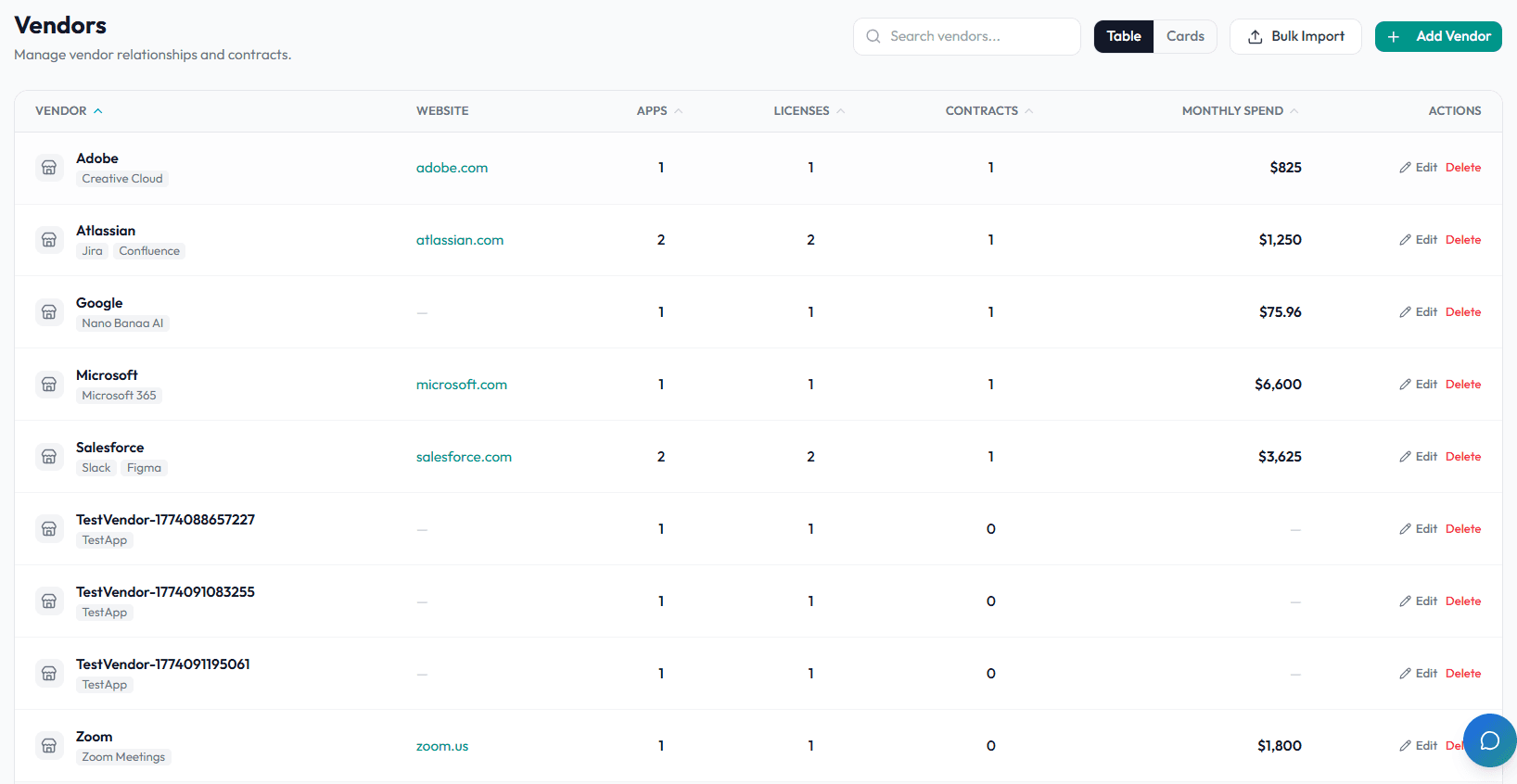
Create vendor profiles that show ownership, linked apps, contracts, spend, and renewal context.
Before You Begin
- Sign in to Liceo.
- Gather vendor name, website, contacts, owner, linked apps, and contract details.
Step 1 - Open Vendors
- 1Open Assets in the left sidebar.
- 2Select Vendors.
- 3Search for the vendor before creating a new one.
Step 2 - Add a vendor
- 1Select Add Vendor.
- 2Enter the vendor name.
- 3Add the vendor website.
- 4Add primary contact or account manager details.
- 5Assign an internal owner.
- 6Save the vendor profile.
Step 3 - Link apps to the vendor
- 1Open the vendor profile.
- 2Find the linked apps or related records section.
- 3Add each app purchased from the vendor.
- 4Save the changes.
- 5Open each linked license and confirm the vendor appears correctly.
Step 4 - Link contracts to the vendor
- 1Open the vendor profile.
- 2Add linked contracts.
- 3Confirm renewal dates and contract values.
- 4Upload or link contract documents if needed.
- 5Save the vendor profile.
Step 5 - Review vendor spend
- 1Open the vendor profile before renewal or budget planning.
- 2Review linked apps.
- 3Review linked contracts.
- 4Check total spend.
- 5Check unused seats on linked apps.
- 6Add notes for negotiation, support, or compliance context.
Troubleshooting
Vendor appears more than once
Search Vendors for similar names and correct duplicate profiles according to your internal process.
Spend is missing
Confirm linked licenses have cost data and linked contracts have values.
App is linked to the wrong vendor
Open the license record, edit the vendor, and save.
Was this article helpful? Send us feedback
← Back to Help Center